
For best results textures should be Imported into unreal in .TGA format. PNG works as well but can introduce errors in areas with transparency.
- Ensure all textures are named with ROA2 standard Suffixes (_BC for base color _N for normal map etc.)
- Right click in the content browser and import, selecting your texture files when promted.
- Select your textures in the content browser and right click – and select scripted asset actions – Automatic Texture Settings script or set compression settings manually by opening each texture and adjusting settings within.
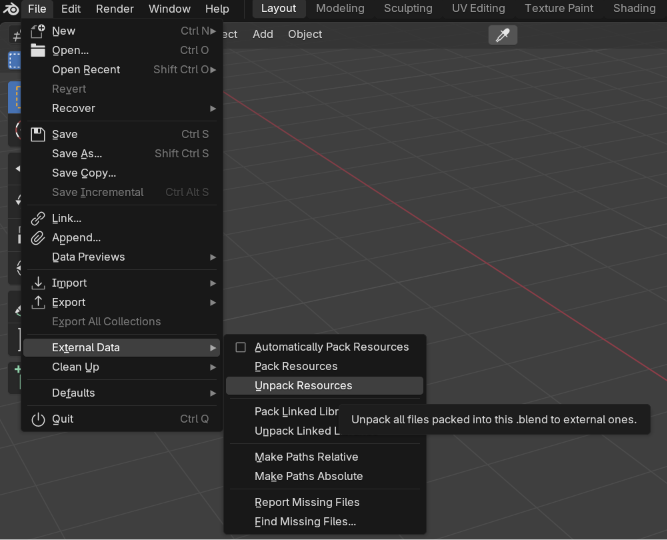
Note: Blender files sometimes come with textures packed into them. You can extract them by going File/External Data/Unpack Resources to save those textures as individual files outside of blender, and then import them into unreal.
Automatic Texture Settings Tool
Once imported into unreal it is important to ensure that your textures use the correct compression per-format for correct results. Textures will usually import with default settings for displaying color, however the Normal Map, ORMS, Color Map and other Masks need to have their compression set correctly in order to display properly.
You can use the automatic texture settings tool in unreal to set compression settings based on the file’s suffix. Select the textures you would like to apply settings to and right click – Scripted Asset Actions – Automatic Texture Settings.
Because the tool relies on correct naming you must follow the naming convention established in this document. It also only works on the following textures
| Texture Type | Suffix |
| Base Color | _BC |
| Opacity | _Opacity |
| Normal | _N |
| Outline, Roughness, Metallic, Shading (Channel Packed) | _ORMS |
| Color Mask | _CM |
| Color Mask 2 | _CM2 |
| Color Mask 3 | _CM3 |
| General Mask | _M |
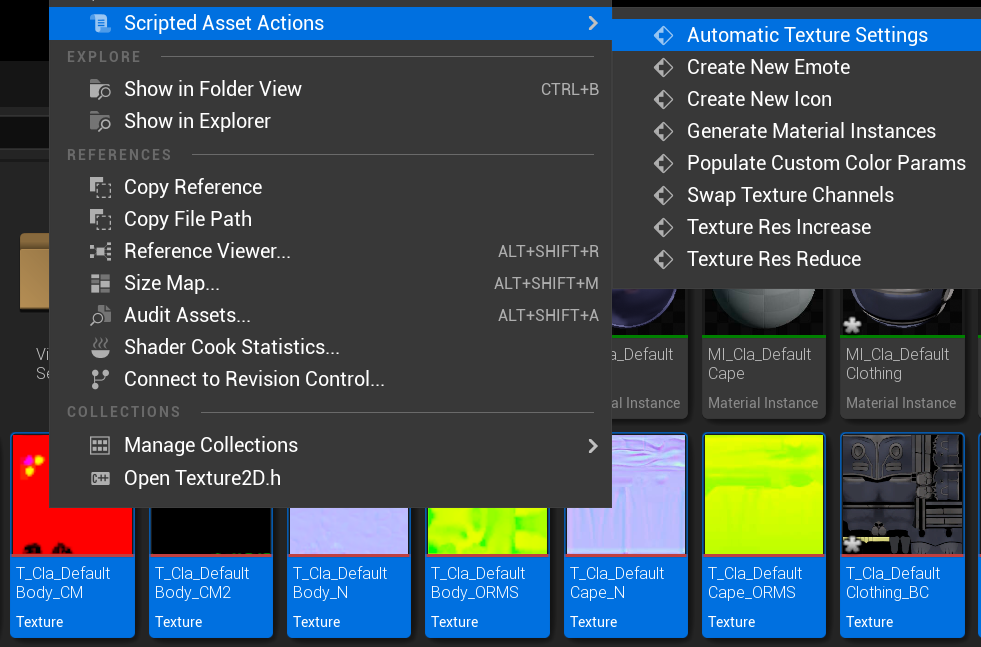
WARNING: The automatic texture settings tool will only work if all selected textures are using the Suffixes outlined in this document. You must save the textures after running the tool to keep the edits made by the tool. The tool does not always mark the textures as unsaved. If a texture with incorrect naming is selected at runtime, the tool will fail and no edits will be made.