
The ROA2 workshop is a full install of Unreal Engine 5.8. When the workshop launches you will be met with the same Unreal Editor Interface that the ROA2 team uses. This page will give you an overview of the editor UI as well as explain how to play the game, either from the main menu or directly from a stage.
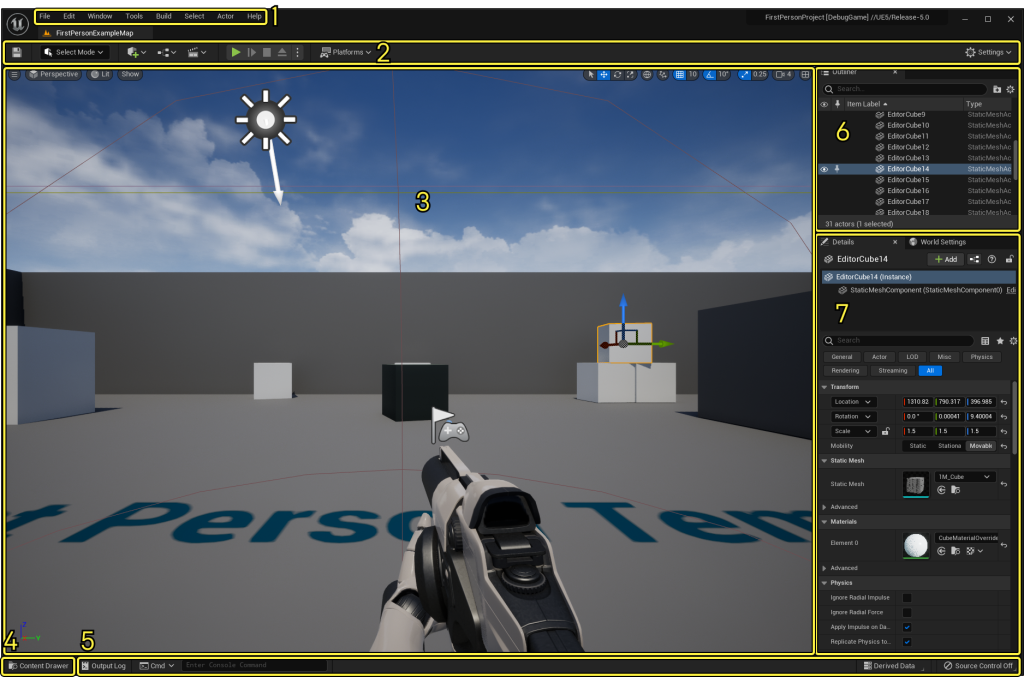
- Menu Bar
Use these menus to access editor-specific commands and functionality. - Main Toolbar
Contains shortcuts for some of the most common tools and editors in Unreal Engine, as well as shortcuts to enter Play mode (run your game inside Unreal Editor) and to deploy your project to other platforms. - Level Viewport
Displays the contents of your Level, such as Cameras, Actors, Static Meshes, and so on. - Content Drawer
Opens the Content Drawer, from which you can access all of the Assets in your Project. - Bottom Toolbar
Contains shortcuts to the Command Console, Output Log, and Derived Data functionality. Also displays source control status. - Outliner
Displays a hierarchical tree view of all content in your Level. - Details Panel
Appears when you select an Actor. Displays various properties for that Actor, such as its Transform (position in the Level), Static Mesh, Material, and physics settings. This panel displays different settings depending on what you select in the Level Viewport.
Feel free to take a moment and visit the official Unreal Documentation for a more in-depth breakdown of the Unreal Editor UI and it’s features.
The Modding menu
The Modding menu at the top of the editor.
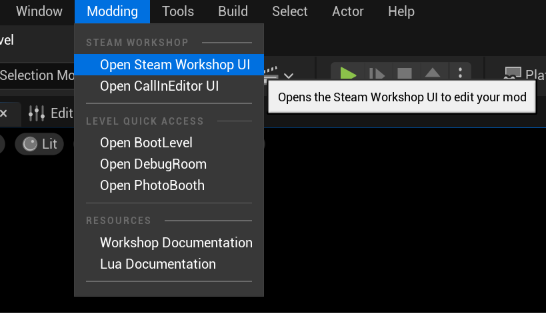
Clicking this menu gives the following options:
Steam Workshop UI
Outlined in more detail in the Steam Workshop UI page, this is where you will initialize and manage your mods as well as publish them to Steam.
Level quick access – Loads the Level listed
- Open BootLevel – Used for launching the game via the main menu.
- Open DebugRoom – Used for quickly playtesting.
- Open Photobooth – Used for editing custom color palettes.
Resources
- Workshop Documentation – Opens a browser to this website.
- Lua Documentation – Opens Documentation for Lua scripting.