
Mod content is created and managed via the Modding Tool UI. This UI contains many useful features for several features including Creating alt skins and palettes, Generating CSPs, Shortcuts for playtesting and more.
You can access the Steam Workshop UI by clicking on Modding in the menu bar at the top and then Open Modding Tool UI (Previously Open Steam Workshop UI).
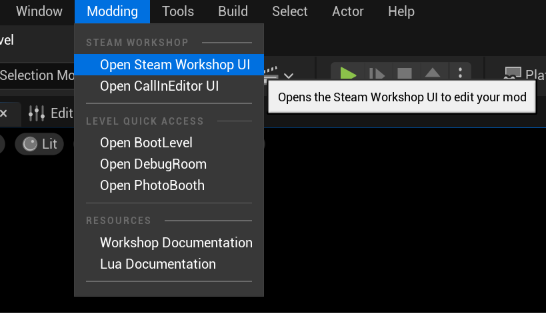
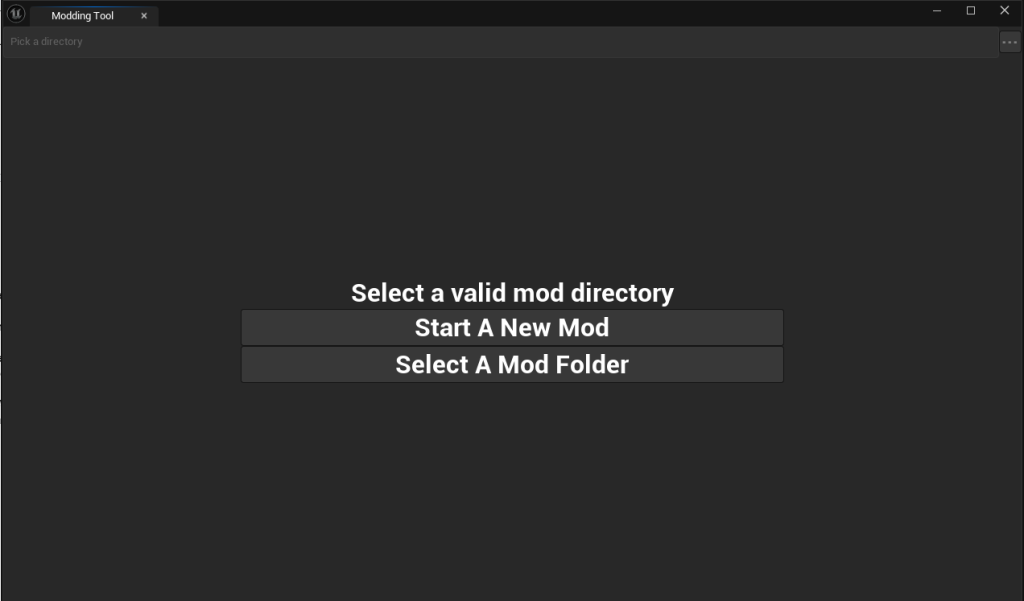
On the home tab there are two options:
- Start A New Mod
- Select A Mod Folder
- Note: There is also a “…” option in the top right of the window. This is a shortcut to the “Select A Mod Folder” option and is always present regardless of tab you are on.
Choosing to “Start A New Mod” will lead you to the Mod Initialization Tab
- Note: If you choose “Select a Mod Folder” and the chosen folder is empty it will also lead to the Mod Initialization Tab
Mod Initialization Tab
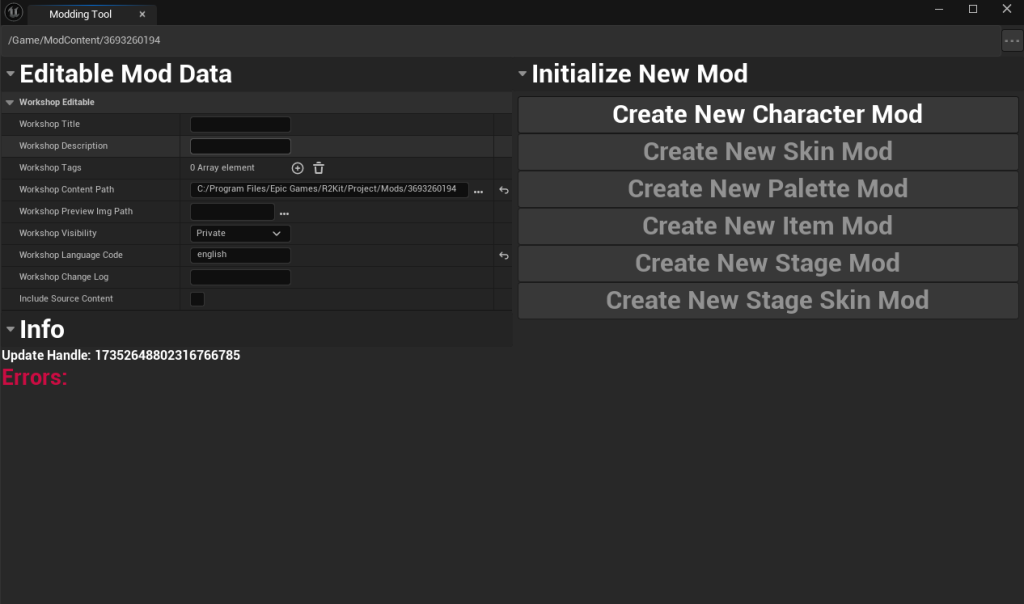
Because of how Steam Workshop is so tightly integrated with the modding pipeline even without a valid mod type you will always see the Editable Mod Data on the left hand side. This data is pulled directly from Steam every time this tab is opened.
Options:
- Create New Character Mod
- Choosing this options will begin the character mod creation process which can be read mod about in the Character Create section.
- Create New Skin Mod
- This is not a valid option at this time
- Create New Palette Mod
- This is not a valid option at this time
- Create New Item Mod
- This is not a valid option at this time
- Create New Stage Mod
- This is not a valid option at this time
- Create New Stage Skin Mod
- This is not a valid option at this time
Invalid Mod Owner Tab
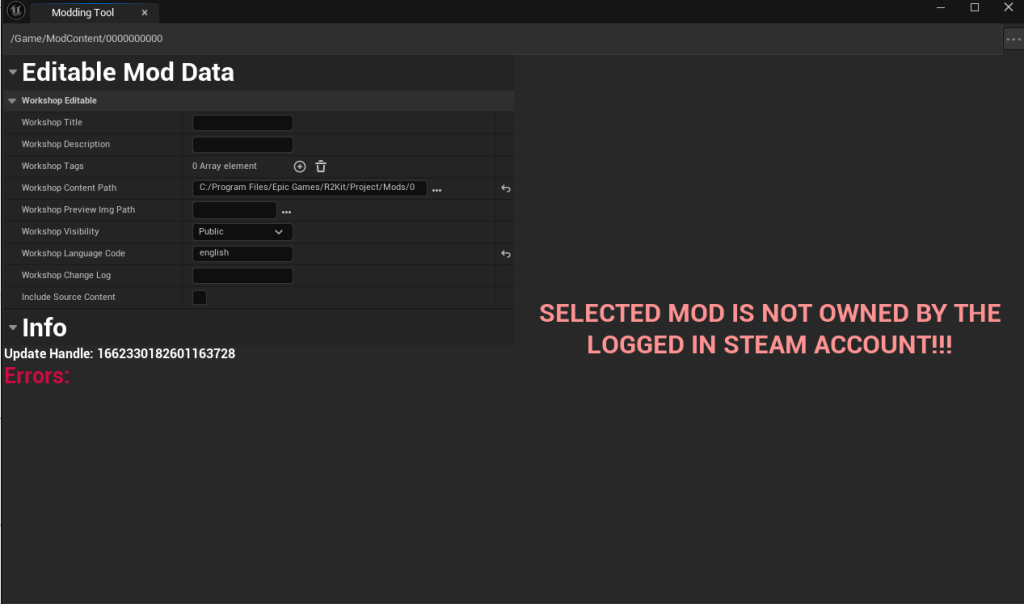
If a mod is selected that is not owned by the logged in Steam user this message is displayed.
- Note: Even mod contributors will see this message as Steam does not allow contributors to upload workshop items
Character Mod Tab
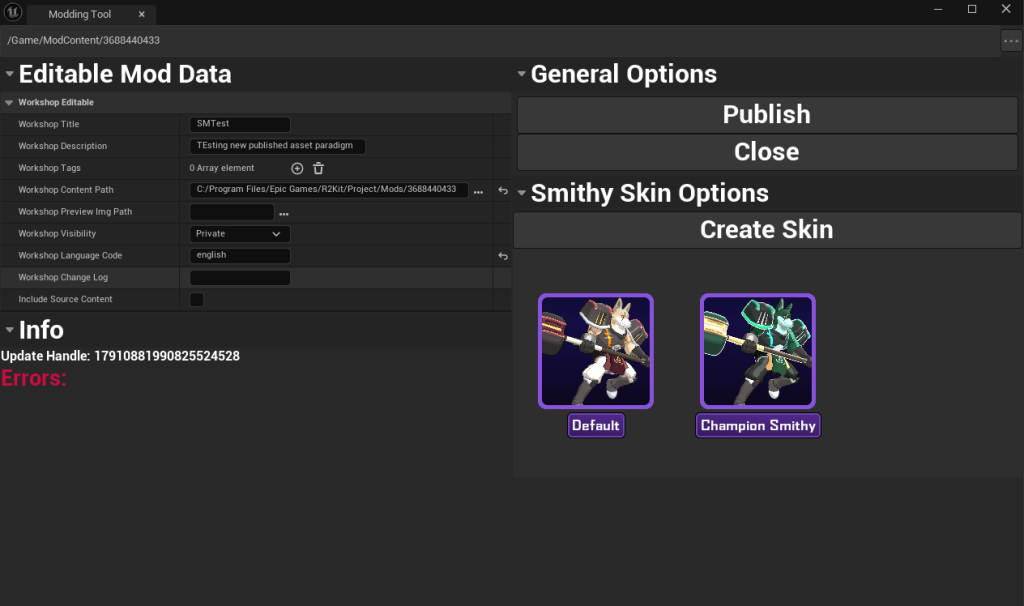
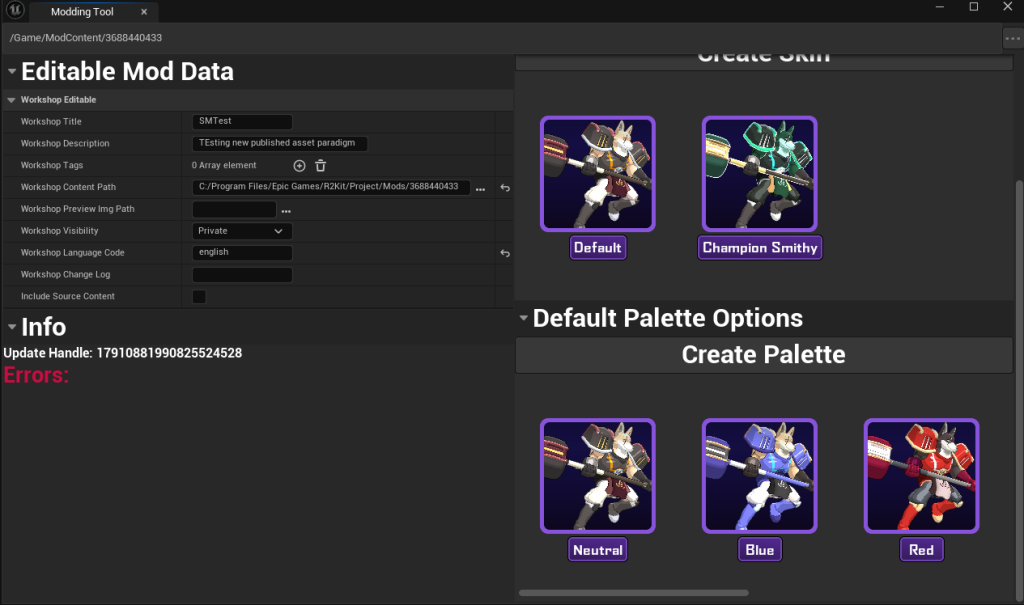
There are several options on the Character Mod Tab:
- Publish
- Publish your mod to Steam workshop using the settings provided in the Editable Mod Data panel.
- Close
- Returns you to the Modding Tool’s Home Tab
- Skin Section:
- Create Skin
- Brings you to the Skin Creation Tab with some data pre-populated
- Skin CSPs
- Clicking a skin CSP that is located under the skin section will populate the palette section underneath the skin section
- Create Palette
- Brings you to the Palette Creation Tab with some data pre-populated
- Create Skin
Skin Creation Tab
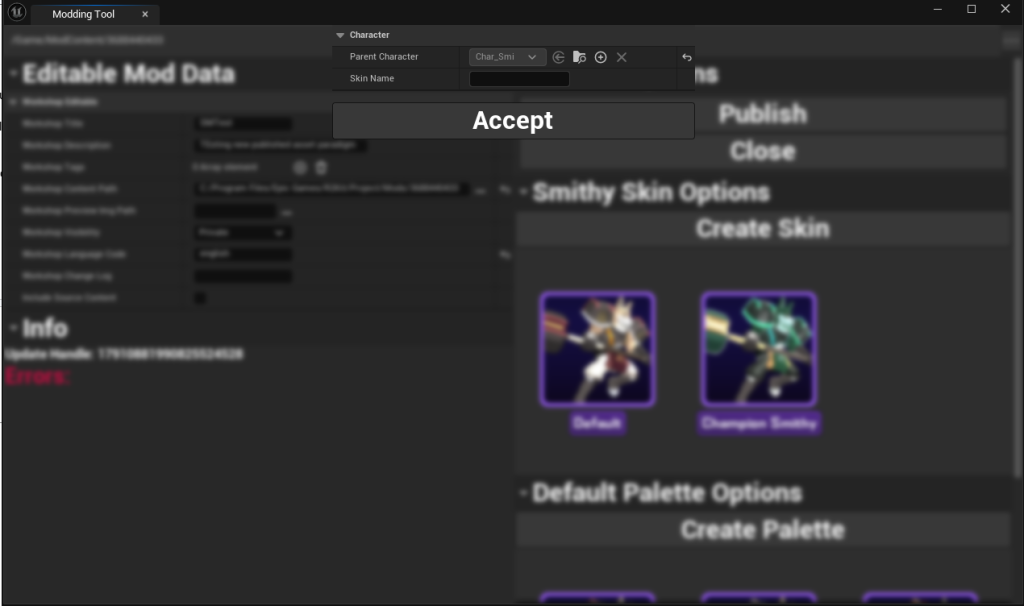
When the Skin Create Tab is navigated to via a character mod the “Parent Character” variable is locked to the originating character.
Options:
- Accept
- This will begin generating a skin for the parent character with the provided name
- Cancel
- Clicking anywhere in the background will cancel the operation and return to the originating tab
Palette Creation Tab
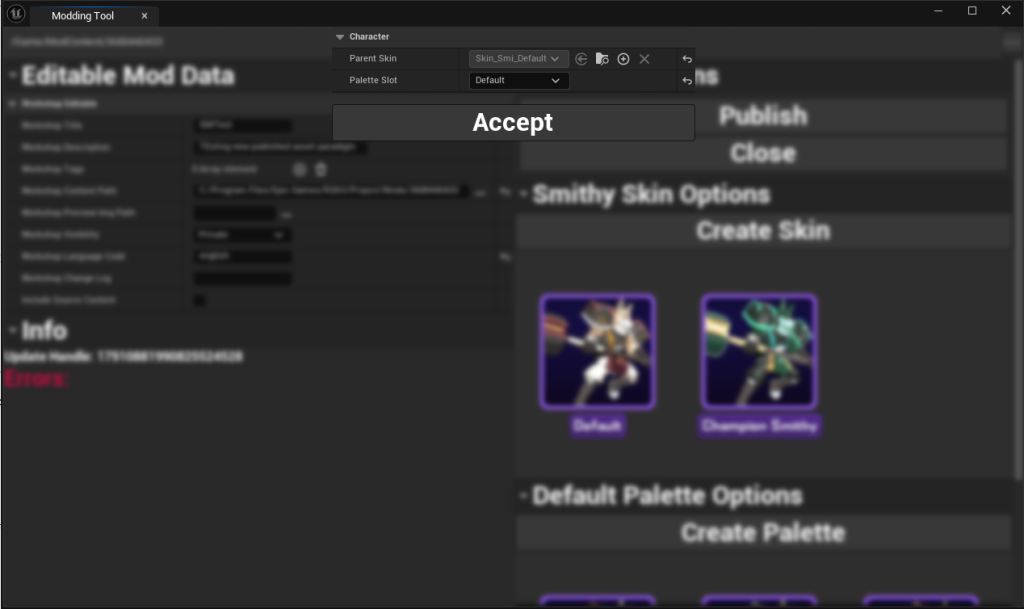
When the Palette Creation Tab is navigated to via a character mod the “Parent Skin” variable is locked to the originating skin that was selected.
Options:
- Accept
- This will begging generating a palette for the parent skin with the provided color slot
- Cancel
- Clicking anywhere in the background will cancel the operation and return to the originating tab
When you are ready to start creating some content check out the Character Creation Guide