
To import a character from Rivals 1, choose “Import Rivals 1 Workshop Character.” This will work with characters, probably not with other workshop entity types (buddies, stages, etc).
Note: Please do not publish an imported character without explicit permission from the original creator.
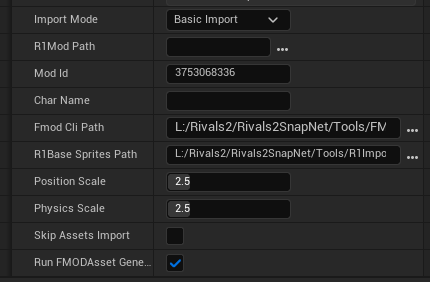
Important Notes
- Running the importer can take 10~20 minutes and will tie up the editor until it’s done. You should see a progress bar within a minute or two, but don’t panic if there’s a short hang before the editor becomes responsive.
- Basic Import will overwrite existing assets (sprites, attack data, etc) but will not overwrite lua files.
- Advanced Import will overwrite everything.
Import Arguments
- Import Mode: Choose whether to import assets only or stand up a basic character skeleton (see later sections)
- R1 Mod Path: Point this at the root of the Rivals 1 mod you want to import. Typically looks something like:
[SteamFolder]/steamapps/workshop/content/[numbers]/[numbers] - Mod ID: The Steam ID assigned to your Rivals 2 mod
- Char Name: Name of the character you’re importing. Doesn’t have to match the Rivals 1 name.
- FMod Cli Path: Point this at your
fmodstudiocl.exe. If you do not have FMOD currently installed, we recommend installing in/Resources/FMOD. The modtool will automatically find installations located here. - R1 Base Sprites Path: Deprecated: R1 Base Sprites now automatically ship with the modkit.
- Position Scale: Scales hitbox geometry — every hitbox’s offset and size. Typically should match Physics Scale.
- Physics Scale: Scales everything else (sprites, movement values, velocities, gravity, hurtboxes, etc).
- Skip Assets Import: Will not import sprites if ticked — Useful if you want to reset AttackDatas, etc, to their base import state but don’t want to wait several minutes for assets to import.
- Run FMODAsset Generation: Necessarry to correctly import sounds from R1. You typically want to leave this ticked.
Import Modes
The Rivals 1 Importer can run in three different import modes:
- Assets Only: Extracts and imports any assets (spritesheets, SFX, VFX) from the character, but does not stand up the character itself. Use this if you just want the assets to use as you please.
- Basic Import: Analyzes the mod code to stand up a best-attempt data only setup of the basic functionality of the character — movement, normals, hitboxes, physics.
- Advanced Import: (currently disabled) Builds a complex lua-side shim to simulate the Rivals 1 engine API, stands up a character, and attempts to convert all custom GML scripts to lua automatically through a custom transpiler.
Note: The importer no longer imports Rivals 1 base-game VFX and SFX into your mod. These assets now ship with the game to save space on every mod, and are available at R1Compat/BaseVFX and FMOD/Events/R1Compat/Base.
Finishing A Basic Import Character

After import, characters imported with Basic Import will behave identically to any other 2D character (See this page). In general, the only difference for a modder is that 2D Flipbook assets will be used in place of Skeletal Mesh animations in most places.
Typically movement and normals will work pretty well out of the box. Specials will often have their sprites hooked up but won’t have any custom scripting. It will be up to the modder to implement the more advanced behavior on top of the skeleton the importer has set up. This is done in Lua with the same interface as any other workshop character.
Fixing an Advanced Import Character
This is a much more involved process and will be detailed once the Advanced Importer is finished.