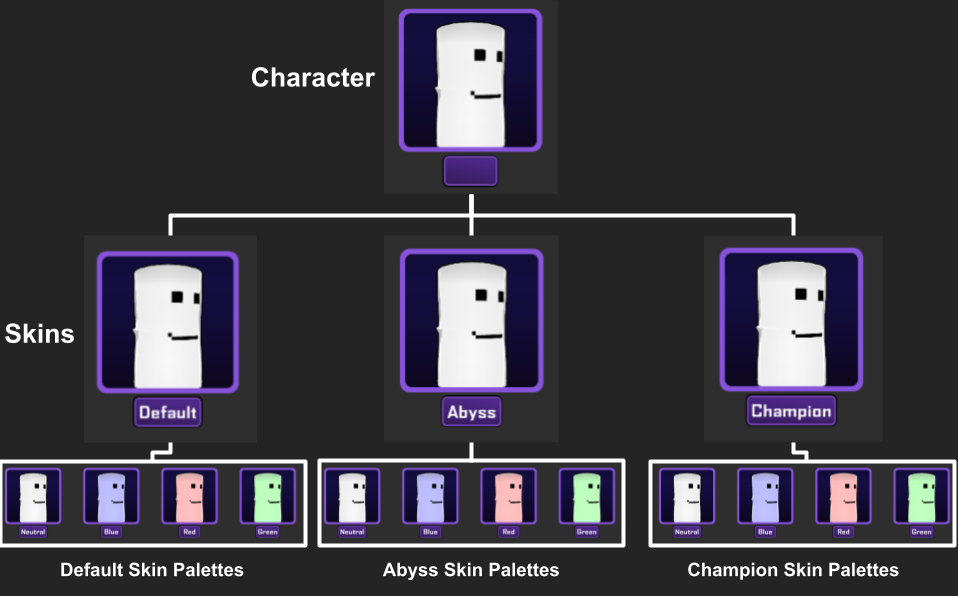
Every skin in ROA2 has a list of palettes used load the character and their materials/meshes etc in game. When you create a character a default skin and 4 color palettes are generated by default, Neutral, Red Green and Blue. Additional palettes can be generated in the Modding UI. Additional skins will also be generated with 4 palettes of their own.
More than just a fun cosmetic choice, palettes are useful for differentiating between multiple players using the same character, therefore each palette should be visually distinct.
Create Alt Palettes
New palettes are created in the modding tool by selecting your character, then selecting the skin you would like to create a palette for, and finally clicking on the create palette button.
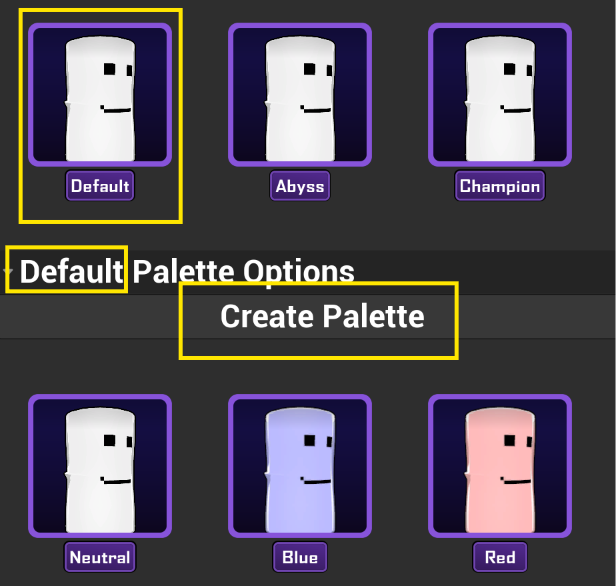
Creating a new palette will prompt you to choose a color option from a pre-populated list. Some of these have been created for base cast characters and come with certain expectations, for example a black palette featuring predominantly black or dark colors. Others are given generic names and are open to interpretation, regardless of the palette name chosen, you may establish your own visuals.
Alt Palettes use inheritance so that anything set in the Neutral palette becomes the default property for all alt palettes of that skin, therefore you should first complete setup of the neutral palette before doing any work on alt palettes.
After creating an alt palette the following files will be generated in the appropriately named folder under your mod’s UnrealAssets/skins/”SelectedSkinName”/Data/Palettes folder.
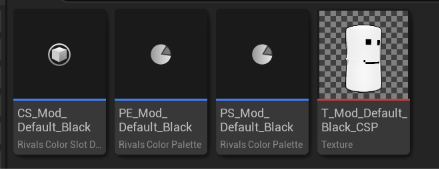
- A Rivals Color Slot Data
Allows you to define the visual overrides for this palette. In here you can choose different skeletal mesh or material overrides for your mesh effects and characters, as well as which Rivals Color Palette files and CSP are loaded. - A Rivals Color Palette with PS_ (Palette Skin) prefix
Used to define colors on your character and their various mesh effects/articles. - A Rivals Color Palette with PE_ (Palette Elemental) prefix
Used to define elemental colors (color gradients assigned globally to all materials, mainly used for particle effects but can be used on characters as well if materials are set up appropriately. - A CSP Texture
Must be re-captured once you have completed setup for the palette.
Assigning Mesh effect overrides
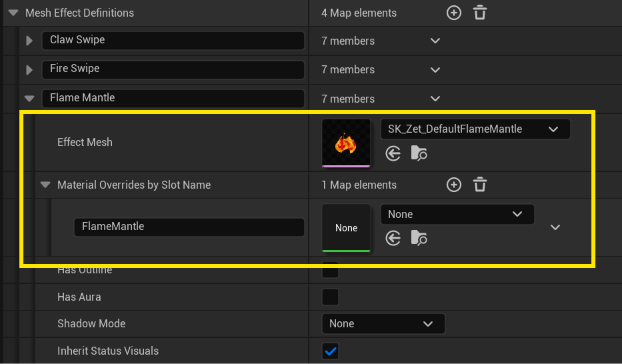
With mesh effects assigned to your neutral palette you can then assign materials and skeletal mesh as overrides on your alt palettes by navigating to the mesh effect definitions section of the Color Slot file.
Assign Blueprint Renderer override
Assign a blueprint renderer override in the Rivals Color Slot Data by selecting one in the Character Renderer Class Override dropdown If you want to use a different model for an alt palette, or you want to add/change components in the renderer.

Set up Alt Colors with Base Color Textures
If you are working with Base Color Maps, you can safely ignore the Rivals Color Palette files, instead you would set up alternate colors for each palette with the following steps:
Select your skin’s materials, right click and create instances of them for each palette.
Then do one of the following:
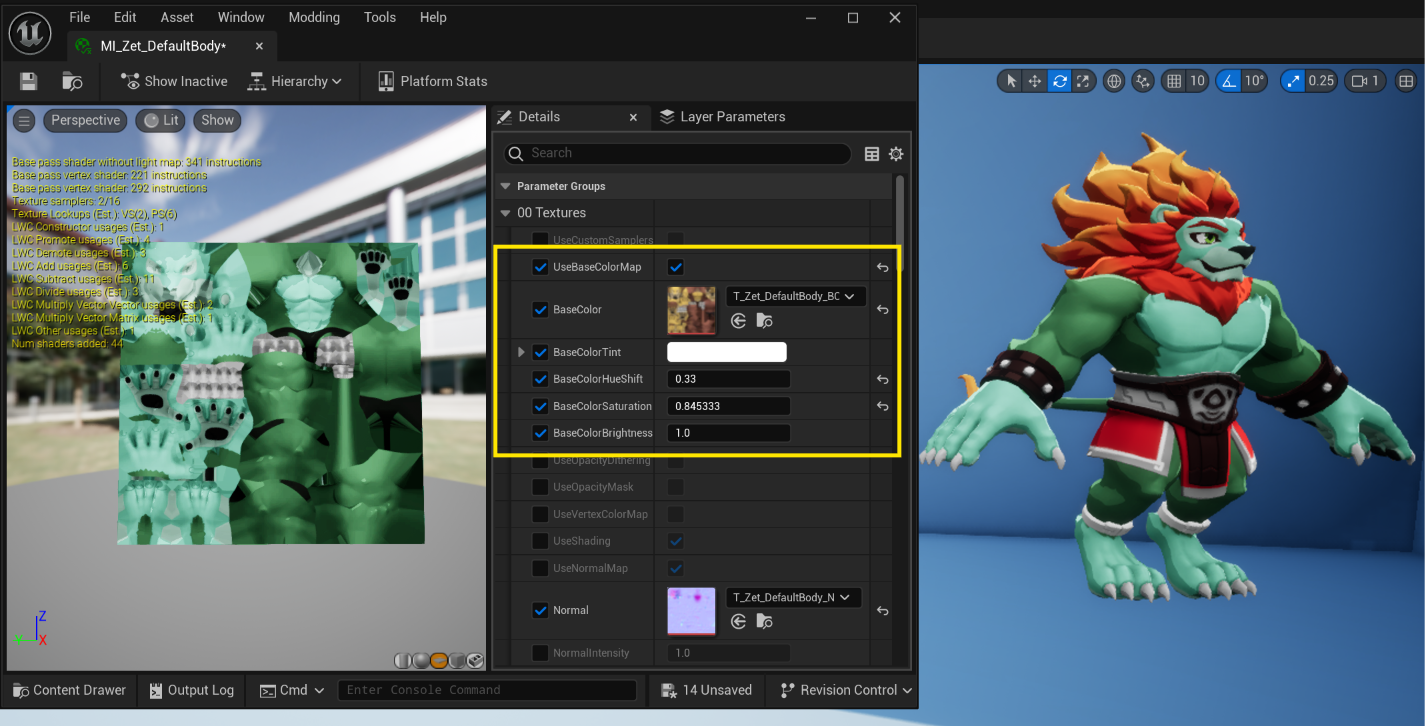
Open these materials and make modifications to the color parameters to change their colors
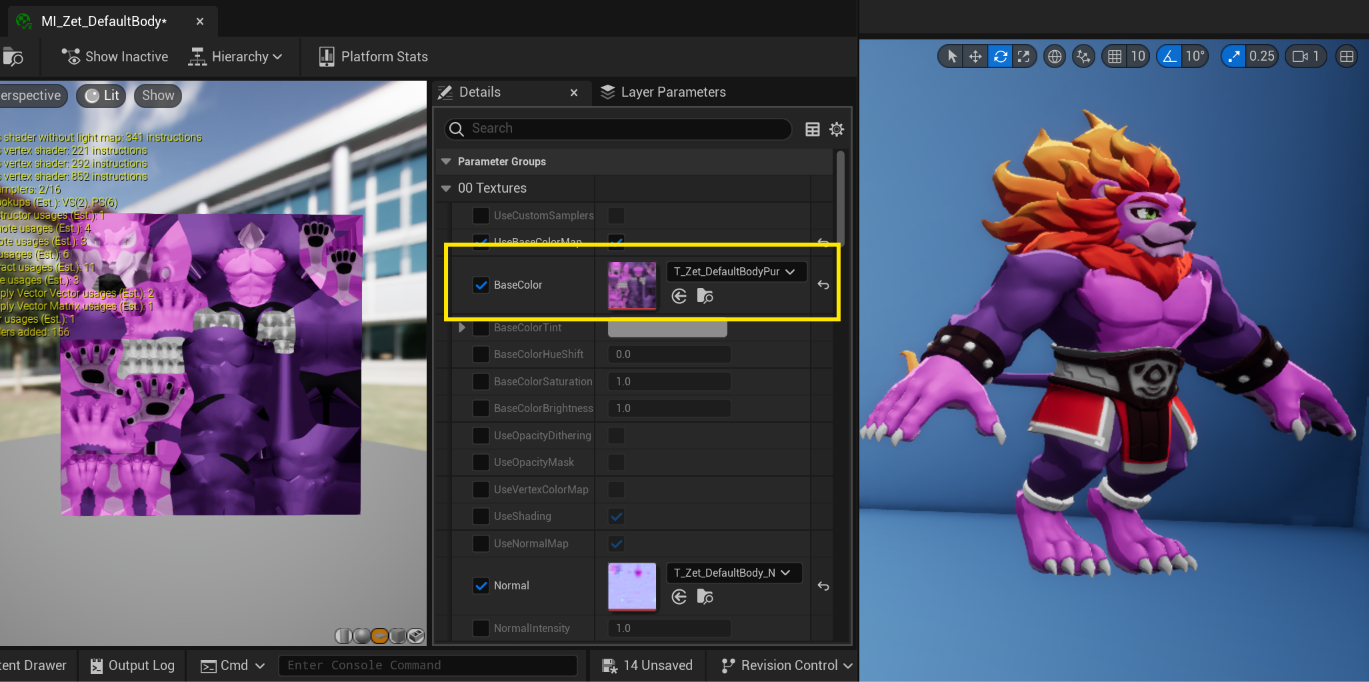
Or create different versions of your base color textures with different color values and assign them to the material instances.
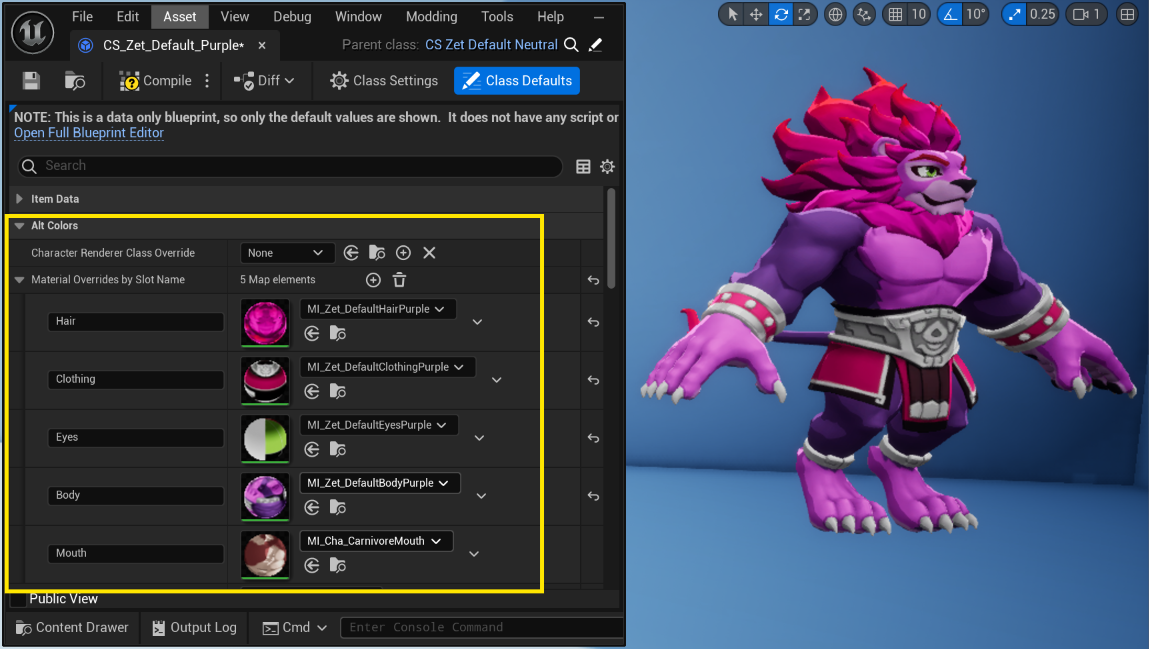
In your alt palette CS files List the Material slots on your character mesh matching their names in the skeletal mesh, and then assign the material instances as material overrides.
If you would like to instead setup dynamic recoloring using Custom Color Maps, refer to the Dynamic Color Palettes section.