This page aims to covers the process for setting up Mesh Effects. These are separate skeletal mesh actors with their own armature and rig that are animated alongside the character in Blender.
Mesh effects are useful for adding animated visuals to your character that only need to be present briefly and therefore shouldn’t be built into the character mesh.
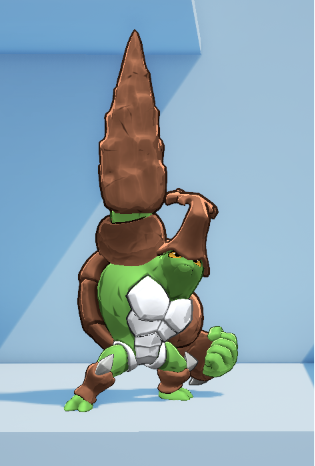
Create Mesh Effects
Mesh effects are created with the same process as your character assets (Skeletal mesh, skeleton, Physics asset, Material instances and textures) but are not included in the character mesh or the RivalsCharacterRenderer blueprint.
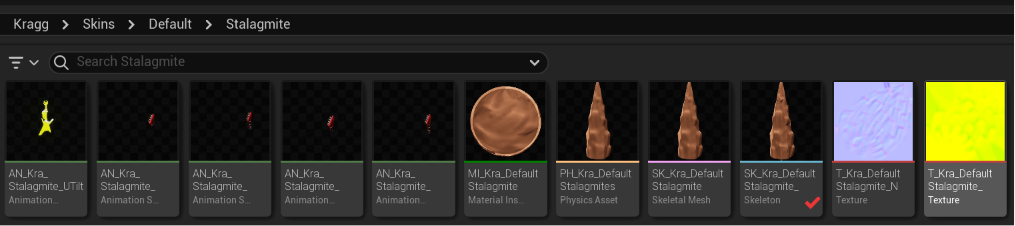
Examples of these include Kragg’s Dodge ball, side special spikeball, UStrong Spikes and can all be found in the Characters/Kragg/Skins/Default folder.
- Mesh effects are purely visual, they add no hitbox or other gameplay data.
- Mesh effects stay in lock-step with the character state, they can not be offset or in a separate state than that of the character.
- Mesh effects are destroyed upon reaching the end of their animation, this way you can terminate mesh effects early during an attack if needed, however if your attack can return to previous windows after the mesh effect has been destroyed it will not spawn again, in these cases it is best to match the character animation to ensure the mesh effect doesn’t get destroyed prematurely.
Define Mesh Effects
In order to call a Mesh effect it must first be defined in the character’s Neutral CS file.
Navigate to the Mesh Effect Definitions Section of the default skin’s Neutral Palette file and begin adding your mesh effects by Name (this name is arbitrary and is used to invoke the associated mesh effect).
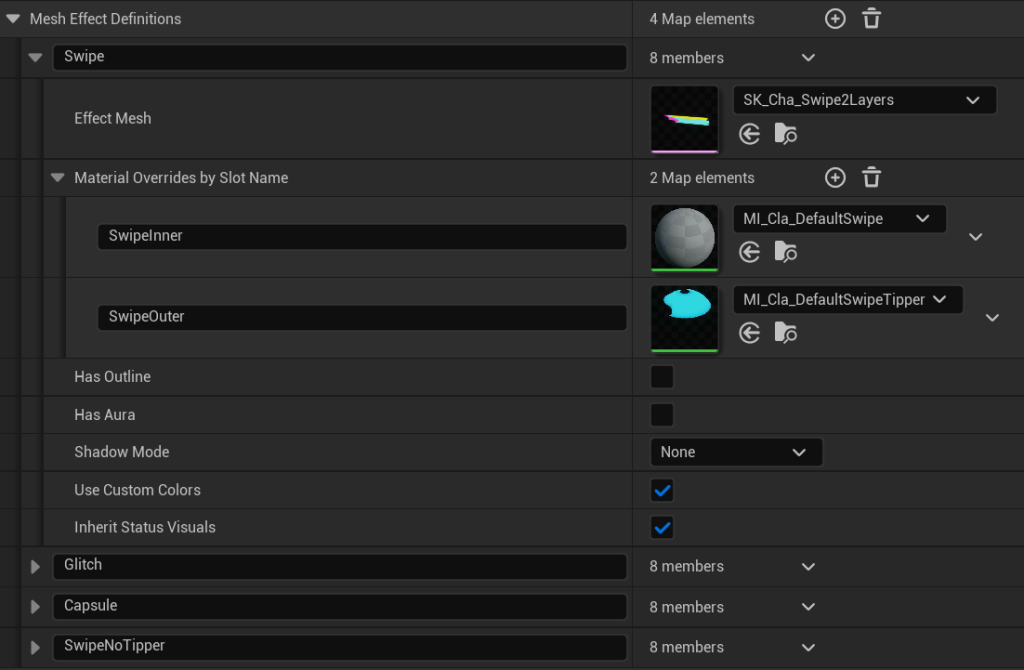
- Assign the skeletal mesh, and material overrides if needed (useful if you are using a shared asset).
- Ensure settings for Outline, Aura (on Fire/Parry visual), Shadow Mode and Inherit status visuals (Should flash during invincibility? etc) are set appropriately.
Call Mesh Effects in Attack States
Once they have been added to the neutral CS file they are inherited by any alt palettes and skins, you may choose to use overrides per alt-color and skin as you see fit.
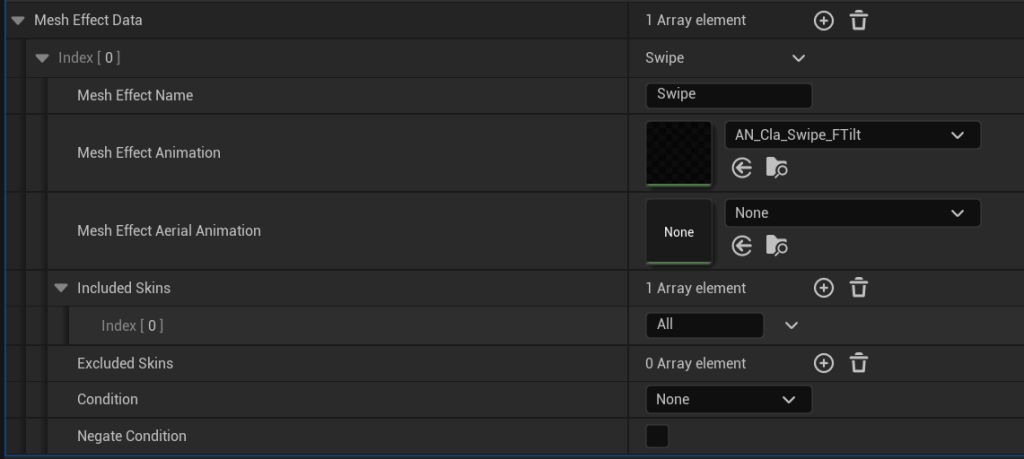
- You can now call mesh effects in your attack data by navigating to the Mesh Effect Data section of an attack, taunt or victory data.
- You must Enter the name of the mesh effect along with the animation sequence to play on it.
- You may choose an alternate mesh effect for Aerial variants.
- Mesh effect animation sequence playback synchronizes with the character.
- If the character animation is time scaled by the attack window data, playback on the mesh effect will match.
- If a mesh effect animation clip is shorter than the character clip, it will be destroyed upon reaching the end of its animation sequence playback. This can be useful for quickly removing mesh effects that should no longer be visible.
- Mesh Effects will only spawn once per attack, on attacks that return to previous windows it’s important not to end the mesh effect clip too soon.
- You can also control visibility on mesh effects by animating the material parameter “Visible” assuming you are using materials with this parameter.
- Multiple copies of the same mesh effect can be invoked with different animation clips if you need multiple copies to display simultaneously. This is often used for swipes on two handed attacks etc.
- If you want to use a mesh effect in your character portrait you can add it in the render data RD_ file.
- If you want to use article visuals in your victory sequence you can add them as mesh effects and invoke them in the victory data.
- Use the Included/Excluded skins list to determine if a particular skin should or should not use a mesh effect for that particular state.
Call Mesh Effects in Non-Attack States
You can add mesh effects to any other non attack state by opening the Rivals Character Data (CD_) file and navigating to the Animations/State Skeletal Mesh effects section.
Add an entry by clicking the plus and choose the state from the dropdown on the left, then enter the name and animation clip as usual on the right.
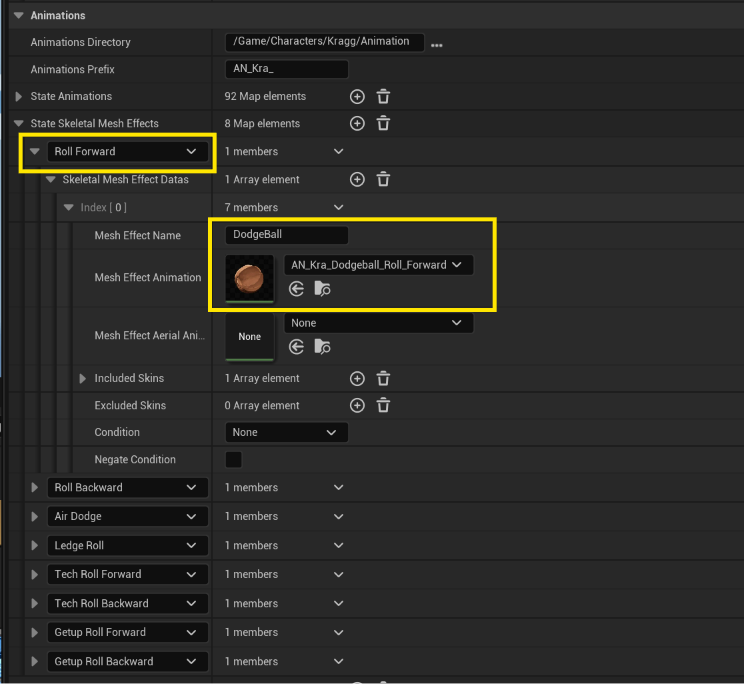
Kragg has several examples of non attack state mesh effects, each of his rolling states loads a “Dodgeball” mesh effect.
WARNING:Mesh Effect naming mismatch between the definition in Color Slot file and the Character/Attack data will cause a crash.