
In order to start building your character in the workshop you must first create a character mod. This process will generate all of the necessary template files and references (Assignments or connections between them) in order to load and play as that character in game.
- With Steam logged in and running in the background, open the Modding UI
- Click Start A New Mod
- Click create a new Character Mod
- Enter the name for your character and click Accept
- The Modding UI will now present you with quick access options for your Character mod. Click on Open mod in content browser.
- Template files have been generated and your character is now ready for Playtesting
This has created a new folder located in
Content/ Mod Content/”UniqueModNumber”/Unreal Assets
This is where all of your character specific content has been generated, and your own art content should be imported.
Base Character Files
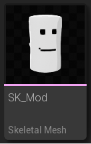
Skeletal Mesh
This is the character’s Geometry – You will replace this with your own.
Unreal Documentation
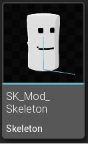
Skeleton
This is the character’s Armature, and will be updated when you replace the Skeletal Mesh
Unreal Documentation
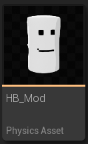
Physics Asset (HB_”Mod”)
This is the character’s Hurtbox, responsible for calculating when your character recieves a hit, as well as the ECB.
This will need to be configured properly after replacing the Skeletal Mesh.
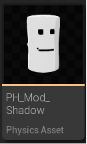
Pysics Asset (PH_”Mod”_Shadow)
This is the character’s shadow caster, also responsible for offscreen culling.
This will need to be configured properly after replacing the Skeletal Mesh.
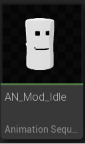
Animation Sequence
A placeholder idle animation assigned to every character state in the Character data, replace this with your own AFTER replacing the Skeletal Mesh.
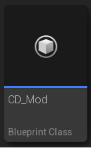
RivalsLuaCharacterData
This is where your Hurtbox and animation states are assigned along with many other values for your character.
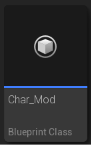
RivalsLuaCharacterDefinition
Contains various Character References
Including several character specific UI settings.
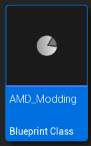
RivalsArcadeModeData
Details for your Character’s arcade mode if applicable (Must Enable Arcade Mode in the CD blueprint)
RivalsSoundEffectContainer
Contains SFX (Sound Effects) Definitions
RivalsVFXDefinitionAsset
Contains VFX (Particle Effects) definitions
Attack Data
Found in your mod’s UnrealAssets/Attacks folder
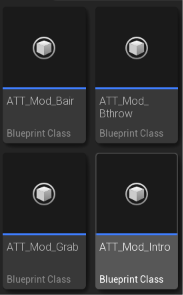
RivalsCharacterAttackData
Data for every common attack in the game is present. They won’t do anything until you begin to fill them out. See Setting up an Attack for more information.
Skin Specific Files
Every character mod is generated with a default skin.
The following template files are generated for every skin added to your mod.
UnrealAssets/Skins/”SkinName”
RivalsCaptureRenderData
Setup Character Pose and camera offsets for your Portraits.
GameOverRivalCaptureRenderData
Assign character animations and offset to use during Arcade Mode Game Over Screen
RivalsCharacterRenderer
This is the Rivals Renderer Blueprint, it references the Skeletal Mesh and is the actor that draws your currently selected character in the game at runtime when this skin is selected.
You can assign your primary character mesh as well as your zapped skeleton in this asset. Your main mesh will be used to draw the outline as well within this asset.
RivalsCharacterSkinDefinition
Assign Custom Color Definitions (Not colors themselves which are instead in the palette files)
Per-skin Article overrides.
Stock icon materials and colors
Status effect Visuals and much more
Victory Data Asset
Assign a victory animation and Level Sequence (Contains camera animation) for this skin
Also allows you to spawn Mesh Effects and SFX
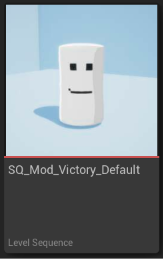
Level Sequence (Victory Camera Sequence)
This asset contains the keyframes and other data pertaining to the victory sequence Camera.
Palette Specific Files
Because generating a character automatically generates a default skin, it also generates the 4 requisite palettes as well.
Unreal Assets/Skins/”SkinName”/Data/Palettes/”PaletteName”
Each Palette includes the following files:
RivalsColorSlotData
Assign Mesh Effects, Material Overrides, and color palette files to change the colors/look of your Palette.
RivalsColorPalette (PS_)
Only used for Custom Colors
This is a list of colors assigned to unique names, these names are defined in the RivalsCharacterSkinDefinition
RivalsColorPalette (PE_)
This is a global color palette, primarily used for coloring VFX but can be used to globally set any color parameter across your character’s materials including mesh effects and articles.
Character Select Portrait (CSP) Texture
This image is used to display your character in the HUD and character select screen.